Appearance
Creating a Private Shopify App
Step by step tutorial
Step 1
Creating a private app
- A custom app must be setup within the Shopify admin dashboard
This can be done by going to:
https://admin.shopify.com/store/<STORE_NAME>/settings/apps/development
TIP
We will need the STORE_NAME to complete the integration. Make a note of it for later!
Step 2
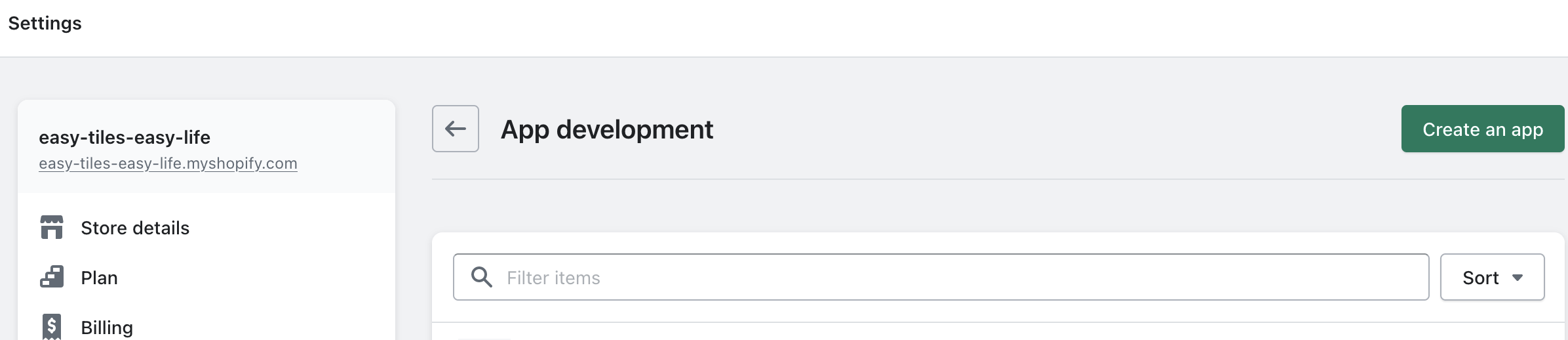
Click "Create an app"
Click the big green button on the far right
Step 3
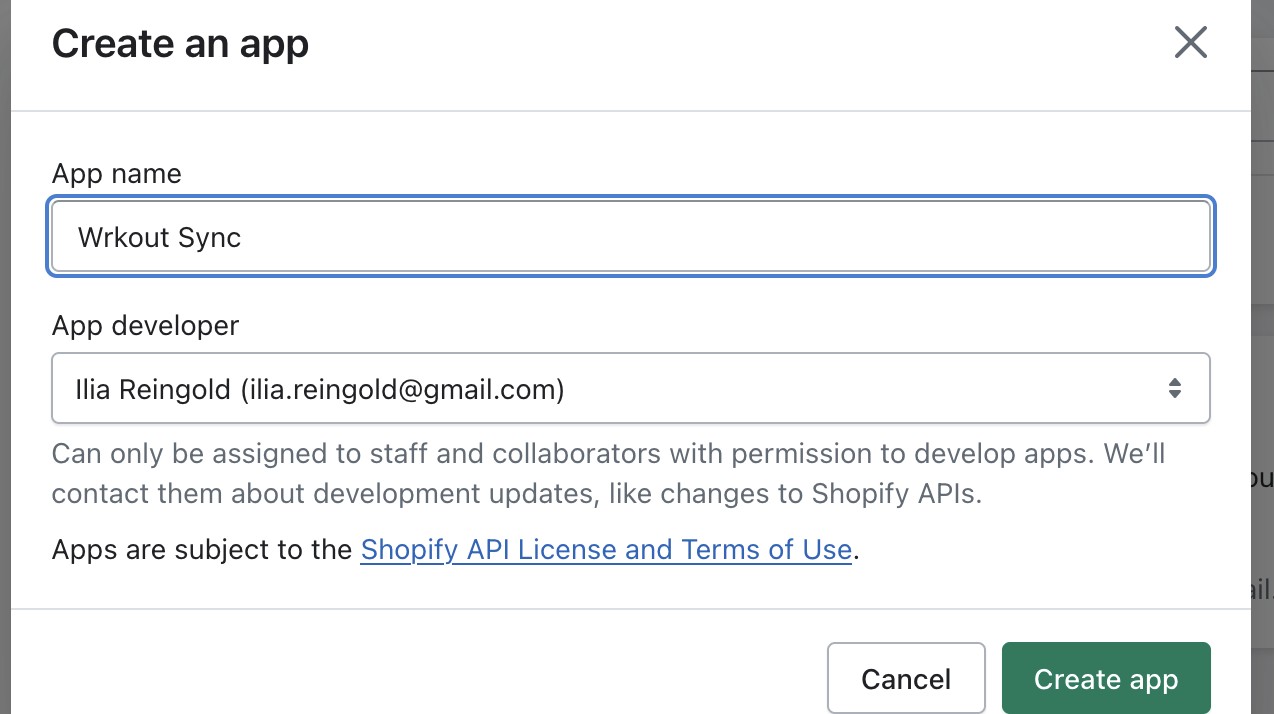
Finish modal
Set a name for the custom app. We recommend WRKOUT Sync.
The app developer doesn't matter, as this is a private app. Feel free to leave the default.
Step 4
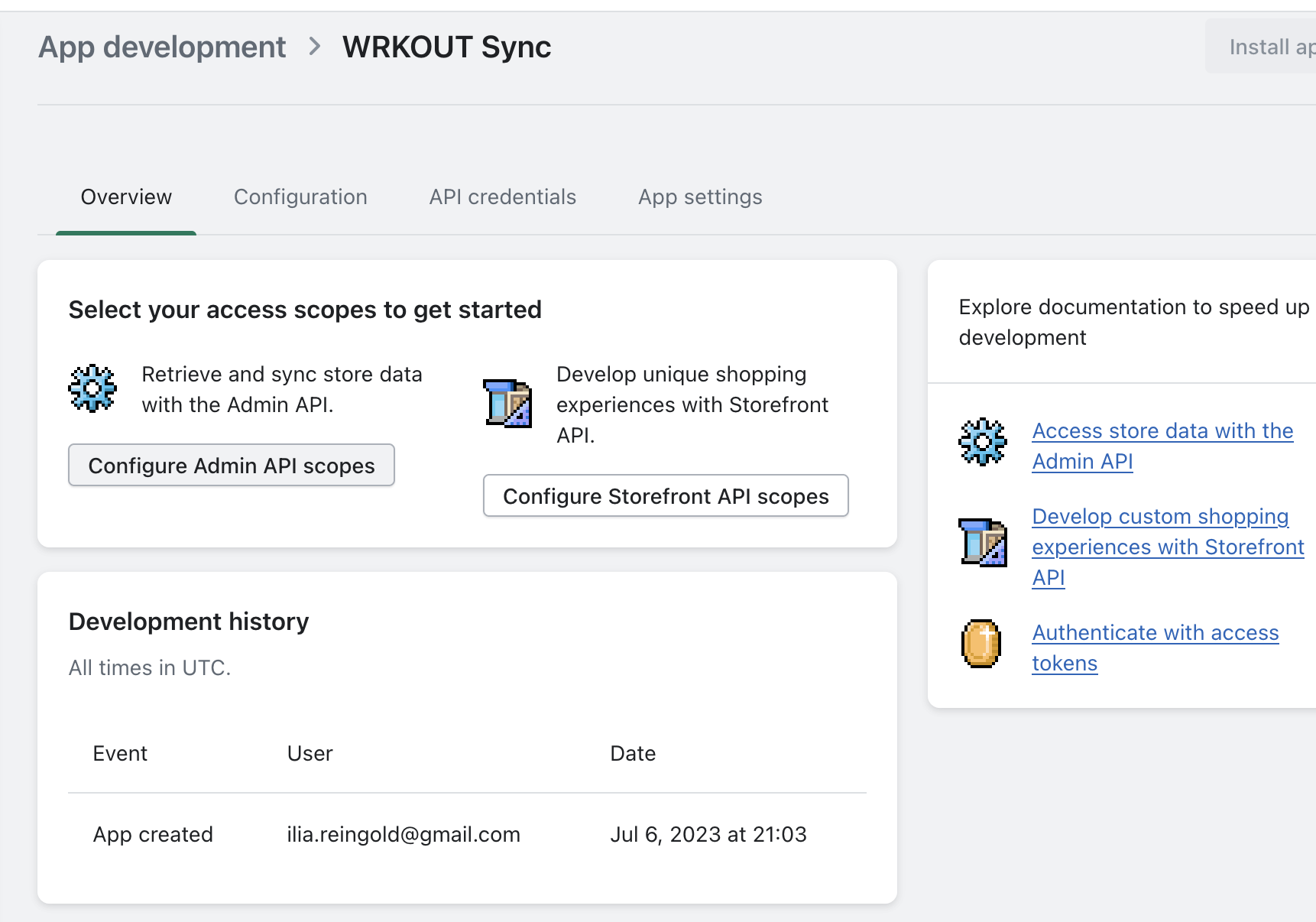
Configure Admin API Scopes
We need to be able to read/write to order, read inventory levels, and read products.
Click Configure Admin API scopes (grey button) to proceed.
Step 5
Configure Admin API Scopes
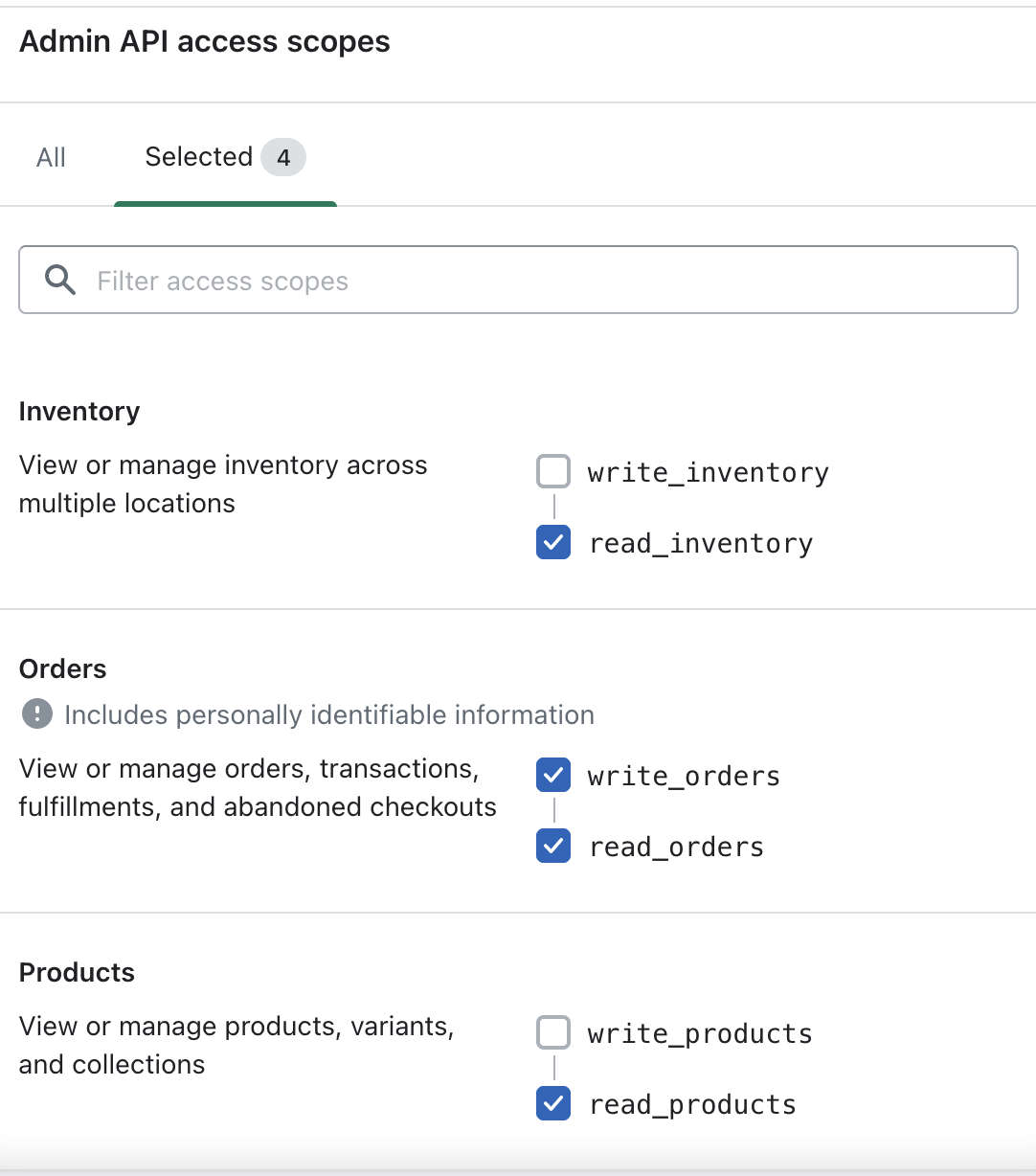
Select 4 checkboxes to grant our app the permissions it requires.
- read_inventory
- write_orders,read_orders
- read_products
TIP
You can use the filter/search to speed this up
Step 6
Save
Hit save at the bottom of the page.
Step 7
Install App
After saving, click API credentials in the tab (beside overview/configuration)
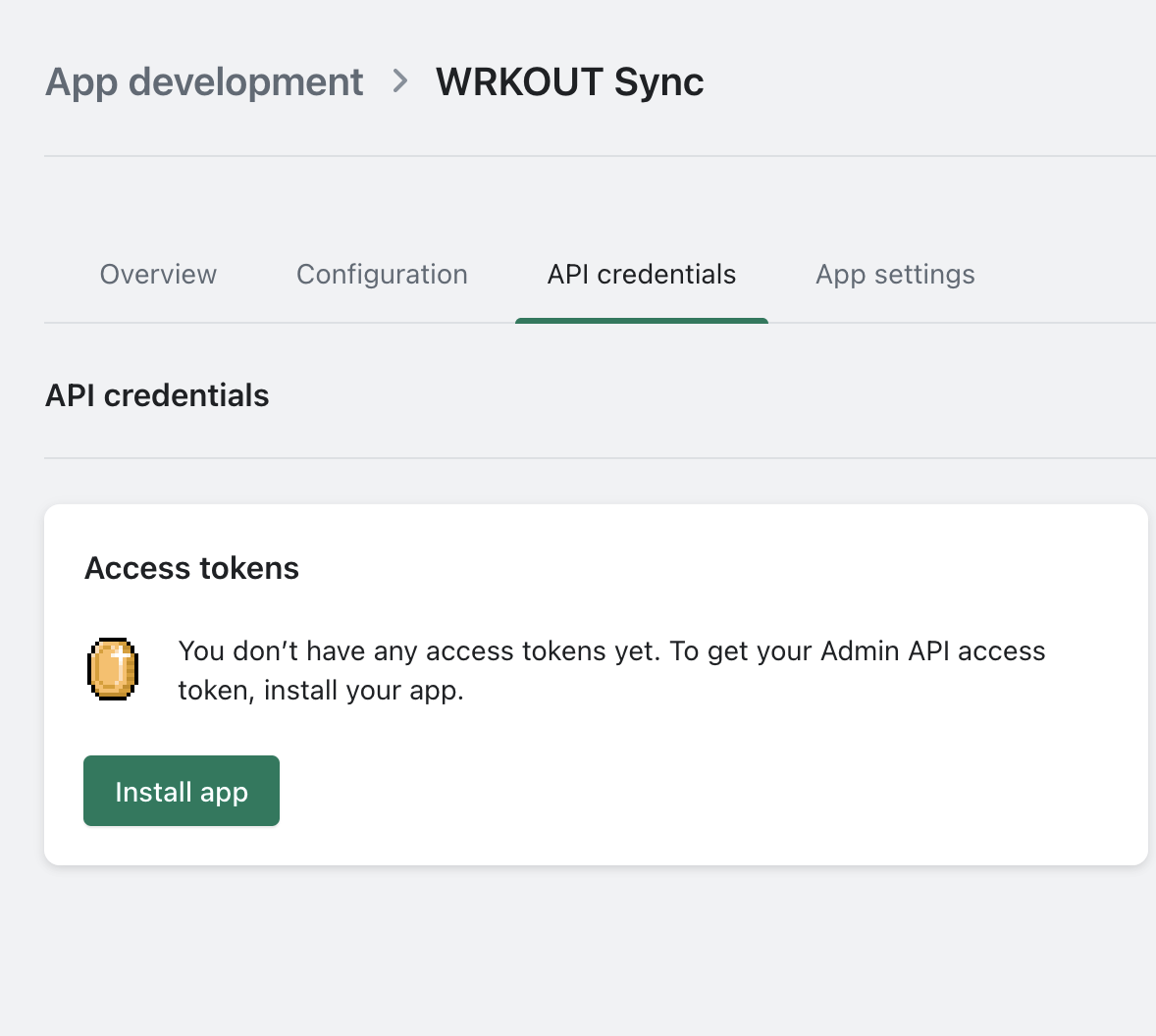
Click Install app, then click "install" on the confirmation modal.
Step 8
Save the access token
You will now be able to copy the generated access token.
DANGER
This can only be REVEALED ONCE.
We need this to finish the integration, make sure it is properly saved before moving on to the next step.
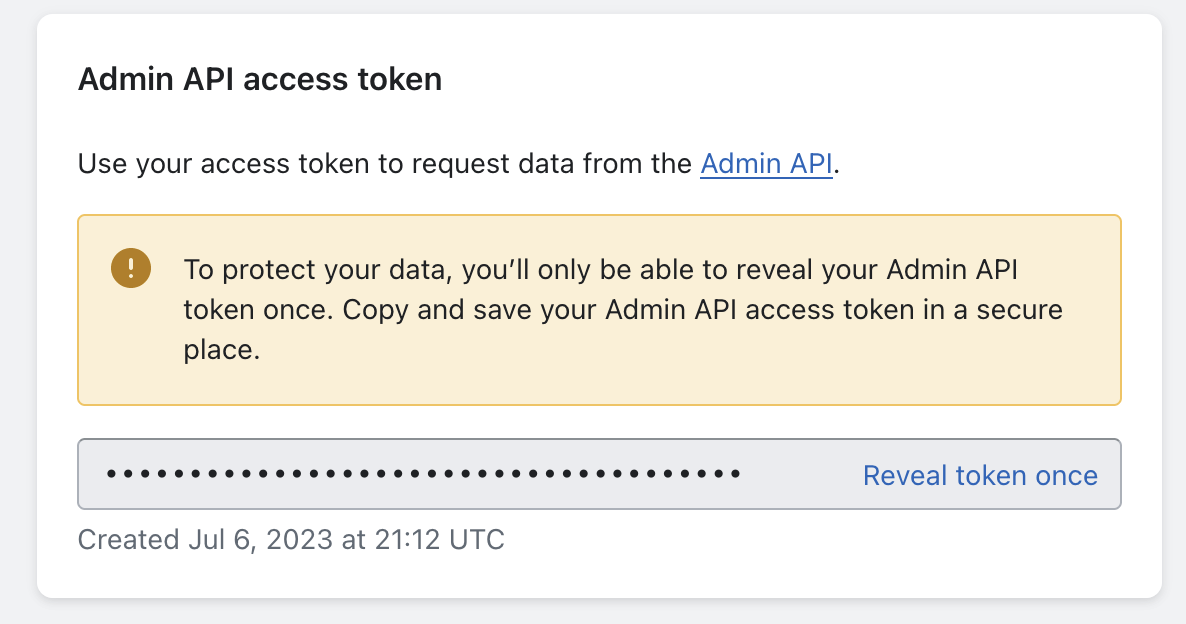
Click "Reveal token once" and store it.
Finished With App Setup
Thanks for getting this far! You're a champ 😃
With the token and the store name, we can now send orders from WRKOUT over to your store!
The only part left to finish is for your store to tell us when you fulfill an order of ours.
That's handled in the next part with a fulfillment webhook
Almost done!